Media Library tools
The AI actions Aimogen Pro adds to the WordPress Media Library - generating images, editing, upscaling and writing image SEO metadata.
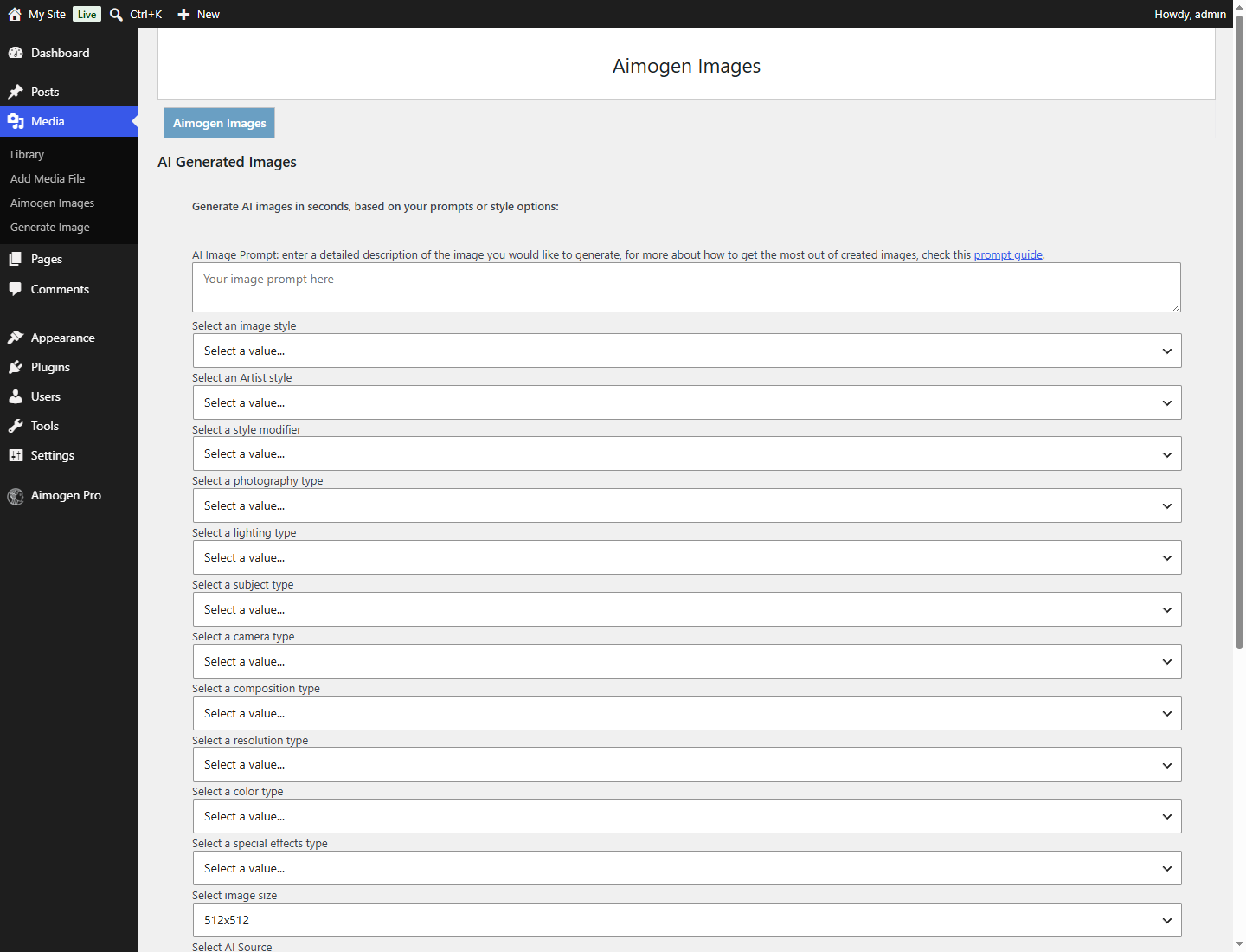
Aimogen Pro adds a Media › Aimogen Images screen and AI actions to individual attachments in the Media Library.
Enable the panels under Advanced Tools › More Features › Media Library Extensions.
This tutorial was recorded before Aiomatic was renamed to Aimogen Pro. Some labels or interface elements may differ slightly from the current version.
Generating images#
Media › Aimogen Images lets you generate images with any configured provider, without going through a post or a rule. Generated images land in the Media Library like any upload.
Useful for one-off images, and for building a bank of images that content rules can later select from using the Random From Media Library image source.
Editing and upscaling#
Selecting an image in the Media Library shows the Aimogen edit and upscale panels, both powered by Stability.AI.
Modes and behaviour are documented in Image editing and upscaling.
Image SEO#
The image SEO panel writes the four WordPress attachment fields with AI:
| Field | Purpose |
|---|---|
| Alternative text | Accessibility, and how search engines understand the image |
| Caption | Displayed with the image |
| Description | The attachment page |
| Title | The attachment title |
This tutorial was recorded before Aiomatic was renamed to Aimogen Pro. Some labels or interface elements may differ slightly from the current version.
Placeholders available in the prompts: %%image_title%%, %%image_alt%%, %%image_caption%%,
%%image_description%%, %%image_list%%, %%post_title%%, %%post_content%%.
Version 2.6.0 improved AI image SEO naming, so generated files get meaningful names rather than
image-1.png.
Alt text is the one that matters#
Alternative text is read aloud by screen readers and is one of the few genuinely reliable accessibility wins available in bulk.
A good alt text prompt:
Write alternative text for an image used in an article titled "%%post_title%%".

Describe what is visually present, in one sentence under 125 characters.
Start with the subject. Do not begin with "image of" or "picture of".
Do not include keywords that are not visible in the image.
If the image is decorative and conveys no information, return an empty string.Vision-capable models produce much better alt text than models working from the filename and surrounding content alone. See Selecting models.
Expiring generated media#
aiomatic_expired_post_delete removes media whose expiry has passed. Expiry is set by:
| Setting | Applies to |
|---|---|
Chatbot AI Vision Uploaded Files Expiration Date | Images visitors upload to the chatbot |
Uploaded PDF Files Expiration Date | PDFs visitors upload |
Set both. See File uploads, vision and PDF chat.
The image dashboard widget#
Version 2.8.0 added a dashboard widget showing AI generated image statistics — a quick view of how many images have been generated and what they cost.
Common problems#
The AI panels are missing. Media Library Extensions are not enabled, or the relevant provider key is not configured.
Editing options are missing. No Stability.AI key.
Alt text is generic. The model is not vision-capable, so it is guessing from context. Use a vision model.
Generated images do not appear in the library. Copying is disabled. See Image generation.
Related#
Still stuck? Open a support ticket and include the diagnostics from Aimogen Pro › System & Logs › System Info.