Updating Aimogen Pro
How Aimogen Pro updates itself, why updates require an activated licence, how to update manually, and what to check after an update.
How updates are delivered#
Aimogen Pro uses a self-hosted update checker rather than WordPress.org. When the plugin is activated with a valid licence, it registers an update source and new versions appear on Dashboard › Updates and Plugins exactly like any other plugin.
Two conditions must both hold for the check to run:
- The licence is in an activated, demo or migration-notice state.
- On multisite, the current site is the main site.
If the licence is not activated, the updater is not registered at all. WordPress then shows a note under the plugin row on the Plugins screen explaining that automatic updating is disabled.
Updating from the admin#
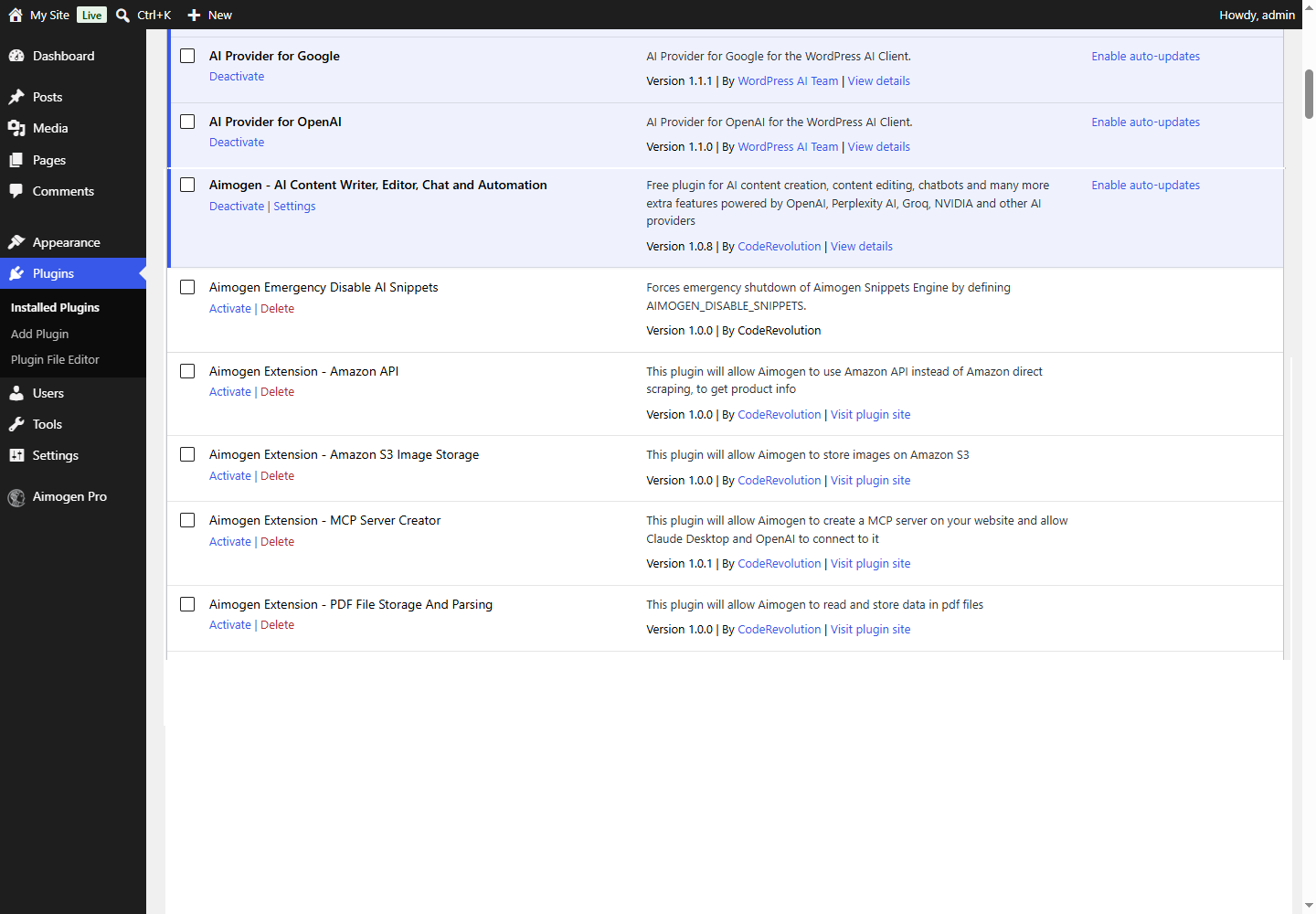
- Go to Plugins or Dashboard › Updates.
- If a new version is listed, select Update now.
- If nothing is listed but you expect a release, select Check for updates in the plugin row, or use Dashboard › Updates › Check again. Update metadata is cached, so a fresh check may be needed.
Updating manually#
If your host blocks the updater, or you need to roll to a specific build:
- Download the current ZIP from your WPBay account.
- Deactivate Aimogen Pro. Do not delete it if you can avoid it.
- Upload through Plugins › Add New › Upload Plugin and choose Replace current with uploaded, or
replace
wp-content/plugins/aimogen-pro/over FTP. - Reactivate.
Deactivating and reactivating does not lose settings: the activation routine only seeds defaults for
options that do not exist, and the starter-content import is guarded by aiomatic_defaults_imported.
Before you update a production site#
Aimogen Pro releases regularly add and retire AI models. The two changes that most often surprise people:
- A model you had selected was removed. Version 2.8.8 removed deprecated models, and 2.8.7 removed OpenAI snapshots and aliases retired on 23 July 2026. If a rule referenced one, it will start failing with a model-not-found error.
- Menus were reorganised. Version 2.8.1 merged several menus into AI Content Creators and created System & Logs, and grouped developer screens under Advanced Tools.
Sensible precautions:
- Take a database backup, or at least export your settings.
- Note which models your active rules, chatbots and agents use.
- Update on staging first if you have one.
After updating#
Work through this list once:
- Check the model selectors. Open each active rule, the chatbot and any agents. If a model was retired, the selector will show it as missing. Pick a current one. See Selecting models.
- Run one rule manually. Use Run now rather than waiting for the schedule.
- Check Activity Logs. System & Logs › Activity Logs shows failures from the first scheduled runs.
- Test the chatbot on the front end if you run one.
- Re-check cron. Some updates change scheduling; confirm the events are still registered under System Info.
Version history#
The in-plugin readme.txt carries recent releases. The complete history since 1.0 is maintained in the
Knowledge Base:
Full changelog for Aimogen Pro (formerly Aiomatic)
Which version am I on?#
Three places agree:
- Plugins screen, under the plugin name.
- System & Logs › System Info.
- The
AIMOGEN_MAJOR_VERSIONPHP constant, if you are checking from code.
This documentation describes Aimogen Pro.
Next: Migrating from Aiomatic.
Still stuck? Open a support ticket and include the diagnostics from Aimogen Pro › System & Logs › System Info.