Editor templates
Creating and applying AI Content Editor templates in Aimogen Pro, and how templates relate to automatic, bulk and per-post editing.
A template is a saved AI Content Editor configuration: which elements to edit, with which prompts, using which models, plus the media, taxonomy, SEO and publishing behaviour.
Templates were added so that one site can apply different editing to different content — a light touch for news posts, a heavier rewrite for an imported archive, a translation pass for one category.
Managing templates#
AI Content Editor › Template Manager
- Add a template and configure it
- Load a template into the editor to modify it
- Delete templates you no longer use
Templates are stored as aiomatic_editor_temp posts, so they are backed up with your database and can be
exported like any other content.
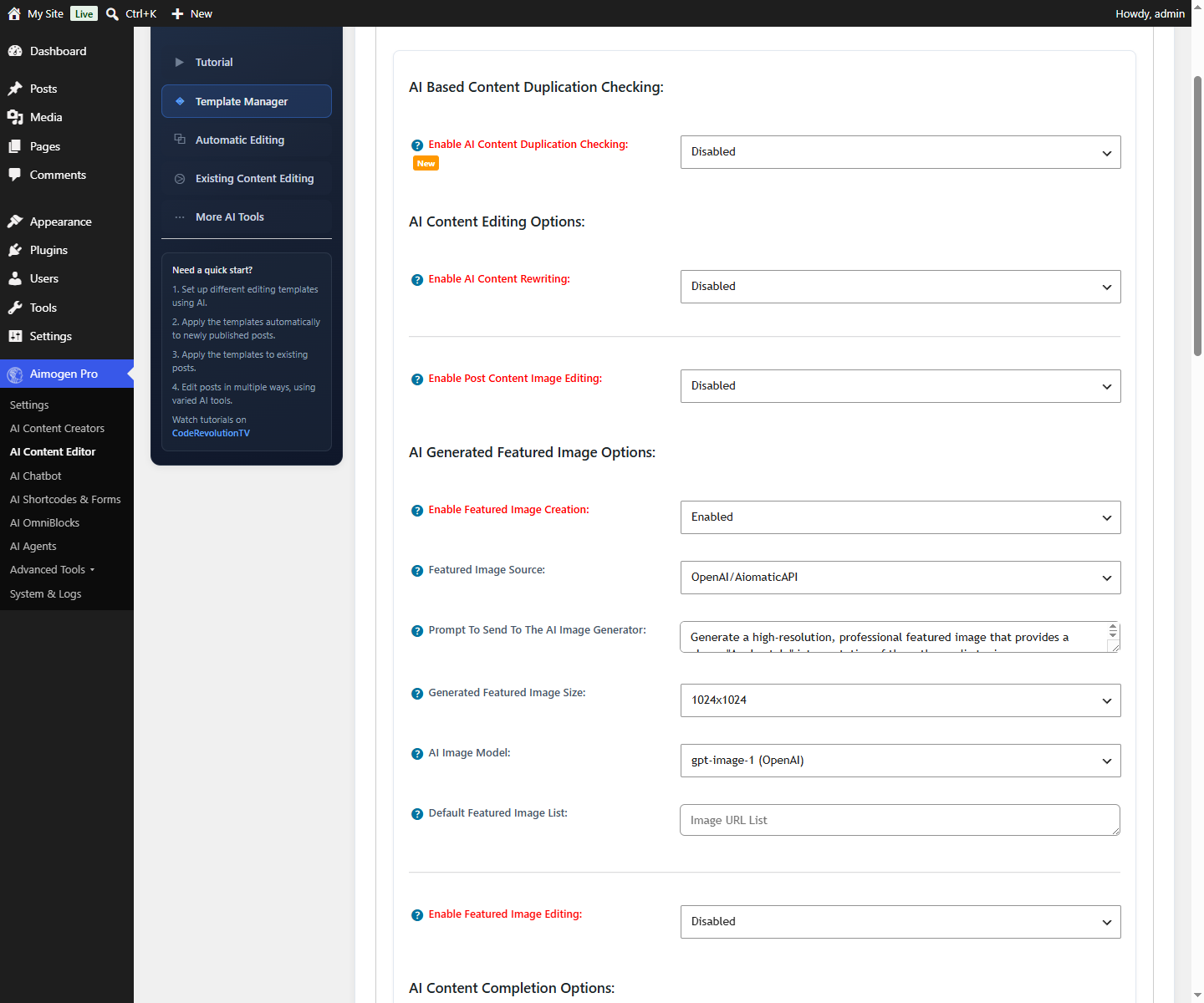
What a template contains#
Everything on AI Content Editor, specifically:
- Which elements are edited, each with its own prompt and model
- Vision toggles per element, letting the model see the featured image
- Generation parameters: temperature, top_p, penalties
- Content protection: length limits, chunk size, HTML protection
- Media settings: featured image source and prompt, content image editing
- Table of contents configuration
- Linking configuration
- Taxonomy generation
- Comment and review generation
- SEO title and description generation
- Audio and speech settings
- Publishing behaviour
Applying a template#
| Where | Setting |
|---|---|
| Automatic editing | Use This AI Content Editor Template For Automatic Post Editing |
| Bulk editing | Use Template on the bulk editing screen |
| An agent | The aimogen_content_editor_templates tool can list and run templates |
| A chatbot | The same tool as a chatbot extension |
The agent and chatbot tools take a post_id and an optional template_id, which means an AI assistant can
be asked to "apply the SEO template to post 412" and do it.
Writing editing prompts#
Editing prompts differ from creation prompts in one important way: the existing content must be in the prompt, or the model has nothing to edit.
Available placeholders include %%post_title%%, %%post_content%%, %%post_content_plain_text%%,
%%post_excerpt%%, %%post_cats%%, %%post_tags%%, %%post_link%%, %%post_date%%, %%post_slug%%,
%%author_name%%, %%blog_title%%, %%first_content_paragraph%%, %%last_content_paragraph%% and the
keep/remove pairs described below. The full list is in
Placeholder reference.
A content editing prompt:
Rewrite the article below to be clearer and more useful, without changing its
meaning or its factual claims.

Title: %%post_title%%

Article:
%%post_content%%

Rules:
- Keep all HTML tags exactly as they are
- Keep every heading, and keep them in the same order
- Do not add new factual claims
- Do not add an introduction or conclusion that was not there
- Tighten wordy sentences; break up paragraphs longer than four sentences
- Return only the rewritten article, with no commentary
Two settings control whether the content is added automatically:
| Setting | Effect |
|---|---|
Do Not Auto Add The Content To The AI Prompt | Stops the plugin appending the content, because your prompt already includes %%post_content%% |
Do Not Auto Add The Title To The AI Prompt | The same, for the title |
If you use the placeholder explicitly, enable the matching "do not auto add" setting or the content will appear twice.
Keep and remove placeholders#
A set of placeholders lets a prompt reference partial content, which is how you edit one part of a post while leaving the rest untouched:
| Placeholder | Meaning |
|---|---|
%%post_content_to_be_kept%% / %%post_content_to_be_removed%% | Content split by your keep/remove configuration |
%%post_plain_text_content_to_be_kept%% / %%..._to_be_removed%% | The plain-text equivalents |
%%post_title_to_be_kept%% / %%post_title_to_be_removed%% | Title portions |
%%post_source_to_be_kept%% / %%post_source_to_be_removed%% | Source portions |
Testing a template#
- Set
Publish as New Post After Editing. - Run it on one post.
- Compare the new post with the original side by side.
- Adjust the prompt for whatever went wrong.
- Only once you are satisfied, switch to editing in place.
Related#
Still stuck? Open a support ticket and include the diagnostics from Aimogen Pro › System & Logs › System Info.