Chatbot quick start
Getting a working Aimogen Pro chatbot onto your WordPress site in about ten minutes, then the three things to configure before it goes public.
You need: Aimogen Pro activated and one provider API key.
1. Give the bot an identity#
Aimogen Pro › AI Chatbot › Bot Configuration
| Setting | Example |
|---|---|
Bot Name | Ava |
Bot Description | Support assistant for Example Ltd |
Bot Context | The system prompt. See below |
Bot Initial Messages (One Per Line) | Hi. What can I help you with? |
Bot Model | A fast model — latency is felt directly by the visitor |
Bot Context is the most important field. It is the system prompt: who the bot is, what it knows, what it must not do.
You are Ava, the support assistant for Example Ltd, a UK company selling
commercial coffee equipment.

You help with product questions, order status and troubleshooting.

Rules:
- Answer only from information you have been given. If you do not know, say so
  and offer to pass the question to a human.
- Never invent prices, stock levels, delivery dates or specifications.
- Keep answers under 120 words unless asked for detail.
- For refunds and complaints, direct the visitor to support@example.com.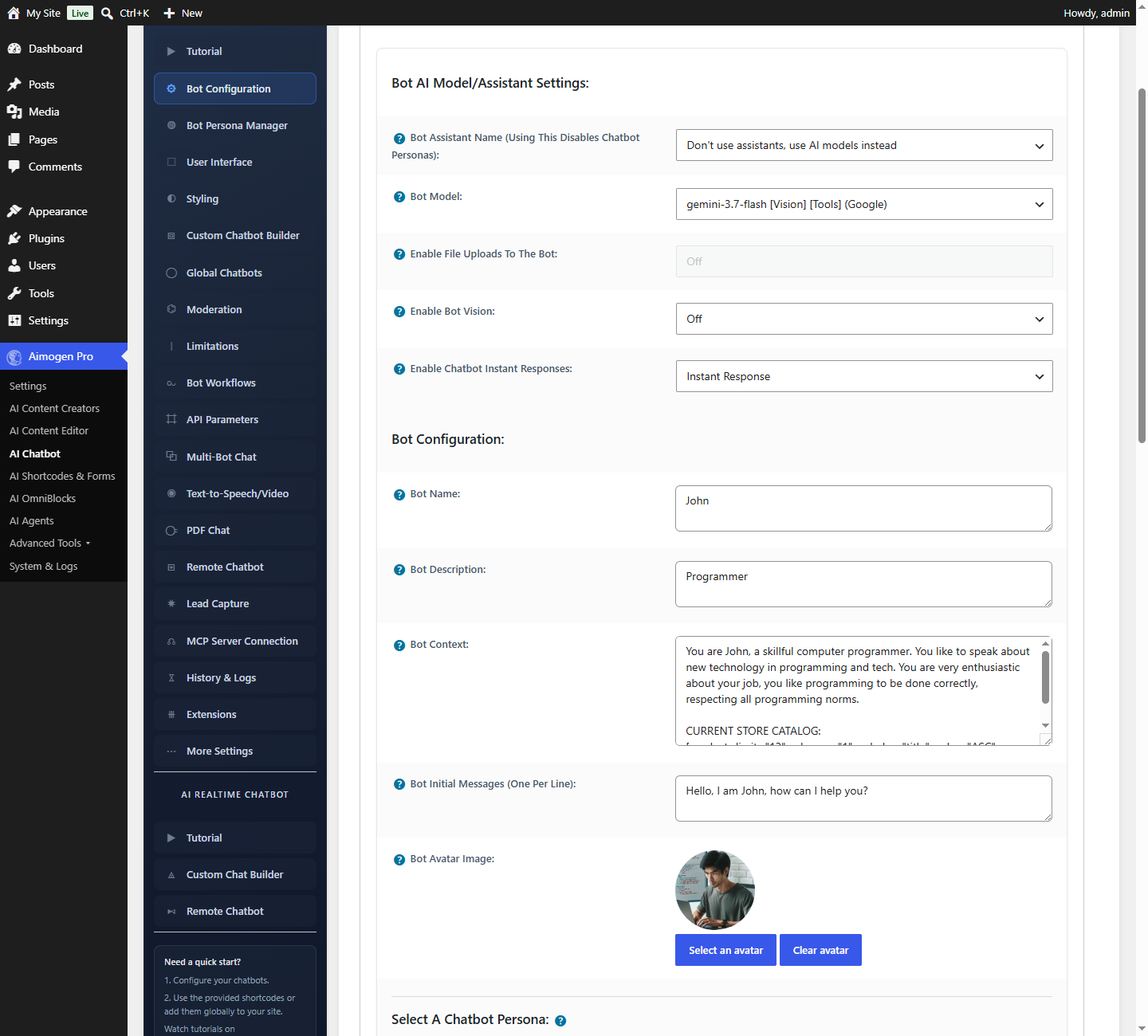
2. Place it on a page#
Add the shortcode to any post or page:
[aimogen-chat-form]Or use the Aimogen Chatbot Gutenberg block.
Load the page. You should have a working chatbot.
3. Test it properly#
Ask it three things:
- Something it should know. Does it answer correctly?
- Something it cannot know — "what is my order number?" Does it admit that, or invent one?
- Something off-topic — "write me a poem". Does it stay in role?
If it invents facts or drifts off-topic, tighten Bot Context.
Three things before it goes public#
Set usage limits#
System & Logs › AI Usage Limits
Give it your content#
By default the bot only knows what is in Bot Context plus the model training data. To answer questions about your products, pages and documentation, enable retrieval — see Knowledge and context.
Decide about GDPR#
If you are in scope of GDPR or similar rules, the conversation is personal data being sent to a third party. AI Chatbot › Moderation › Require GDPR Consent Before Users Can Access The Chatbot shows a consent gate first.
See Moderation, GDPR and limits and Data, GDPR and retention.
Making it site-wide#
AI Chatbot › Global Chatbots › Inject Chatbot Globally To Your Site adds a floating bubble across the site, with extensive targeting. See Global and conditional chatbots.
Next steps#
Still stuck? Open a support ticket and include the diagnostics from Aimogen Pro › System & Logs › System Info.