Image editing and upscaling
Editing and upscaling images with Aimogen Pro using Stable Diffusion, including background removal, inpainting, outpainting and search-and-replace.
Aimogen Pro can modify existing images, not only generate new ones. Both features are powered by Stability.AI and were added in 2.8.8.
They appear in the Media Library, in editor templates, as chatbot extensions, and through the image editor shortcode.
Requirements#
A Stability.AI API key under Settings › API Keys › Stability.AI API Keys.
Editing modes#
| Mode | What it does | Typical use |
|---|---|---|
remove-background | Isolates the subject, removing the background | Product photos on a clean page |
replace-background | Swaps the background for a generated one | Placing a product in a scene |
search-and-replace | Finds an object described in words and replaces it | Changing one element without redrawing |
search-and-recolor | Finds an object and changes its colour | Product colour variants |
inpaint | Regenerates a region | Removing an unwanted object |
outpaint | Extends the image beyond its edges | Changing aspect ratio without cropping |
erase | Removes a region | Cleaning up artefacts |
Default Edit Mode sets which is offered first where a mode selector appears.
Search-based modes take a description rather than a mask — "the red mug" — which makes them far quicker to use than mask-based editing, at the cost of precision.
Upscaling#
Increases resolution while adding plausible detail.
| Mode | Character |
|---|---|
fast | Quickest, lowest cost |
conservative | Preserves the original closely |
creative | Adds more invented detail. Better on low-quality sources, less faithful |
Default Upscale Mode sets the default.
Use conservative for product photography and anything where accuracy matters — creative upscaling will invent details that are not in the original.
Use creative for illustrative or decorative images where a low-resolution source needs to look good at a larger size.
Where you can use it#
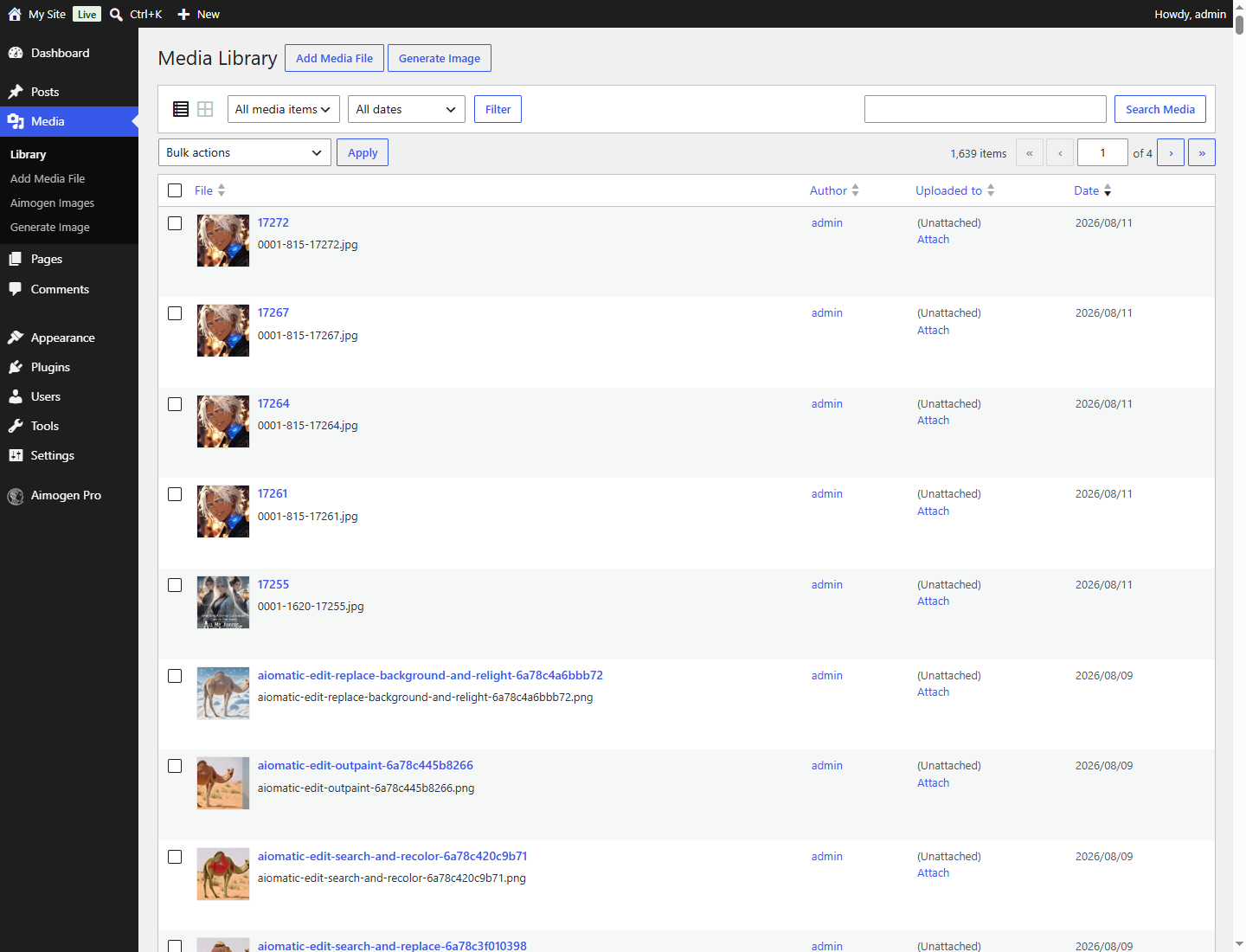
Media Library. Select an image and use the edit or upscale panel. See Media Library tools.
AI Content Editor. An editor template can edit the featured image or images inside the content:
| Setting | What it does |
|---|---|
Featured Image Editing Engine | Which engine edits the featured image |
Prompt To Send To The AI Image Editor | The edit instruction |
Original Image Strength | How much of the original is preserved |
Content Image Editing Engine | The same for in-content images |
Maximum Number Of Images To Edit From A Single Post Content | Batch limit per post |
Chatbot. god_mode_enable_stable_edit and god_mode_enable_stable_upscale let visitors ask the bot
to edit or upscale.
Front end. [aimogen-image-editor-form] renders an editor for visitors. There is also an
Aimogen Stable Image Editor Gutenberg block.
Original Image Strength#
Where an edit uses the original as a starting point, this controls the balance:
| Value | Result |
|---|---|
| Close to 1 | Output very similar to the original |
| Middle | A blend |
| Close to 0 | Output very different, effectively a new image guided by the original |
The plugin help text describes it as mirroring the DreamStudio image-strength behaviour.
Cost#
Editing and upscaling are billed like generation — per operation, per image. Upscaling to a large size costs more than a standard generation.
Bulk-editing every image in an archive is expensive. Test on a handful, read the cost in System & Logs › Usage Logs, then decide.
Common problems#
The edit panel is missing. No Stability.AI key configured.
Search-and-replace did not find the object. Describe it more distinctively — "the red ceramic mug" rather than "the mug".
The upscale looks wrong. Creative mode on a source where accuracy matters. Use conservative.
Background removal left artefacts. Common with hair, glass and fine detail. This is a limitation of the technique, not a configuration problem.
Edits fail on large images. Provider size limits. Resize first.
Related#
Still stuck? Open a support ticket and include the diagnostics from Aimogen Pro › System & Logs › System Info.