Lead capture
Collecting names, emails and other contact details inside an Aimogen Pro chatbot conversation, where leads are stored, and the consent obligations.
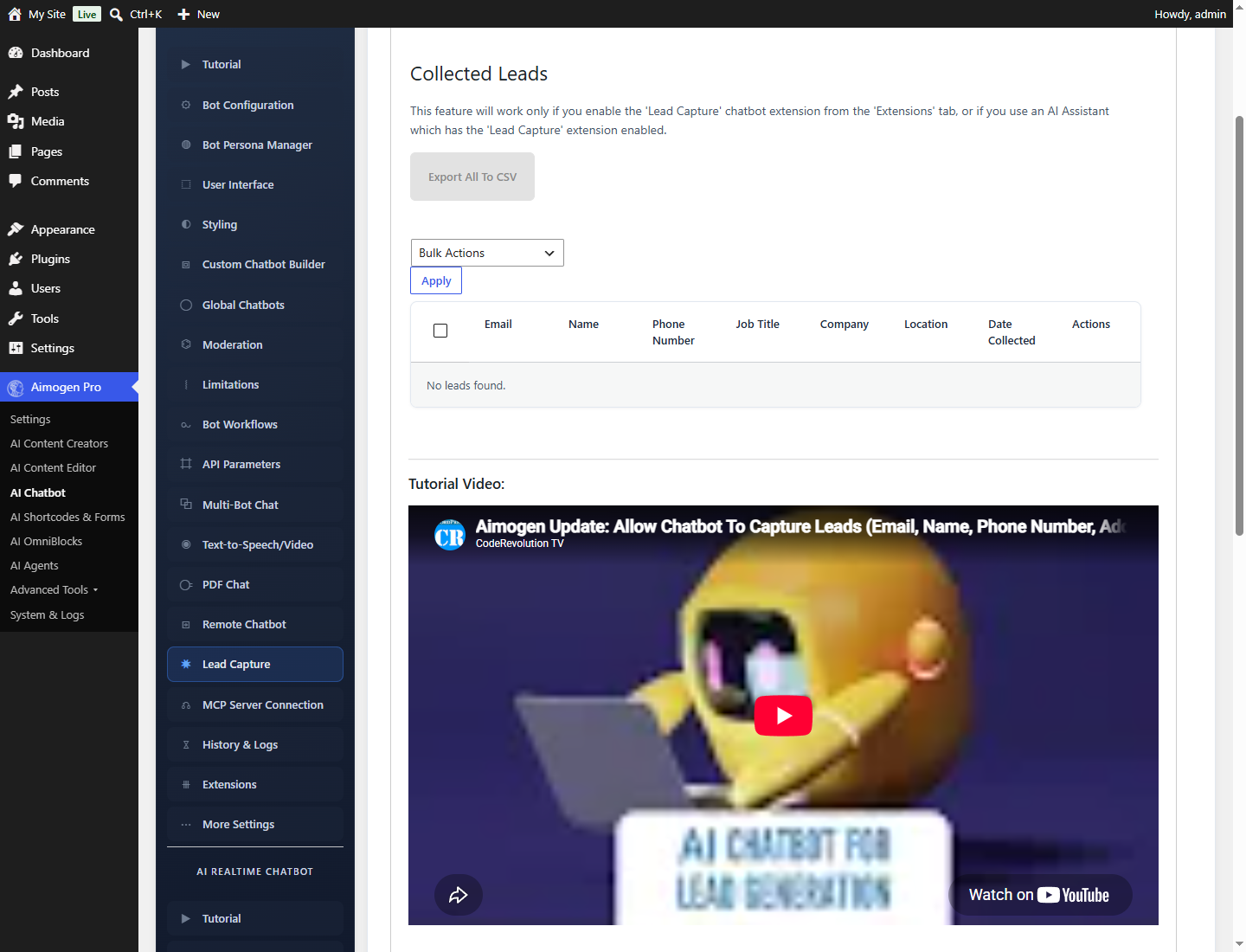
The chatbot can collect contact details during a conversation and store them as lead records.
AI Chatbot › Lead Capture, plus the god_mode_lead_capture extension.
This tutorial was recorded before Aiomatic was renamed to Aimogen Pro. Some labels or interface elements may differ slightly from the current version.
Two ways to capture#
Conversationally, with the extension. Enable god_mode_lead_capture and the AI decides when to ask.
It works out from the conversation that the visitor wants to be contacted, asks for the details, and
records them. Natural, but the timing is the model decision.
With a scripted flow. A bot workflow asks defined questions in a defined order. Predictable, and you get every field.
Most sites want the scripted flow for anything that feeds a sales process, and the extension for a general assistant that occasionally needs to take a message.
Where leads are stored#
Lead records are stored as aiomatic_lead posts. Find them at
wp-admin › edit.php?post_type=aiomatic_lead, with columns configured by the plugin.
The same post type receives submissions from AI Omni Pages forms, so all captured contacts land in one place.
What can be captured#
Name, email address, phone number, postal address and free-form message fields, plus any answers collected by a bot workflow.
Getting leads out#
| Destination | How |
|---|---|
The email extension, or an OmniBlock send_email block | |
| A webhook | The webhook extension, or an OmniBlock send_webhook block |
| A CRM | Through the webhook, into your automation platform |
| An OmniBlock workflow | The ai_chatbot_omniblock trigger receives the full conversation input |
| Export | Standard WordPress export of the aiomatic_lead post type |
For a real sales process, the webhook route is usually right: capture in WordPress, push to the CRM immediately, and keep the WordPress record as a backup.
Consent and lawful basis#
What that means in practice:
Tell people what you will do with it. Before or at the point of asking. Chat Compliance Text under
appearance is a good place for a standing notice; the capture prompt itself should
restate it.
Have a lawful basis. Under GDPR, "the visitor typed their email into a chat" is not automatically consent to marketing. If you intend to market to them, ask for that explicitly and record it.
Link your privacy policy. %%privacy_policy_url%% is available in Bot Context and in prompts.
Consider the GDPR consent gate. Require GDPR Consent Before Users Can Access The Chatbot shows a
consent screen before the conversation starts. See Moderation, GDPR and limits.
Set retention. Decide how long lead records are kept and delete them on that schedule. See Data, GDPR and retention.
Be able to delete on request. A data subject can ask you to erase their record; you need to be able to find it and do so.
Writing a good capture prompt#
When the visitor asks to be contacted, or asks something you cannot answer,
offer to take their details.

Ask for their name and email address, and what they would like us to help with.
Ask for these in one message, not one at a time.

Tell them: "We will use these details only to reply to your enquiry. Our privacy
policy is at %%privacy_policy_url%%."

Do not ask for a phone number unless they offer one. Do not ask more than once
if they decline.
The "do not ask more than once if they decline" line matters. A bot that repeatedly asks for an email after being refused is the fastest way to make visitors leave.
Quality#
Chatbot leads vary in quality more than form leads, because the barrier is lower.
- Validate the email format in the workflow if you use one.
- Capture context, not just contact details. The conversation transcript tells your sales team far more than a name.
- Confirm back. Have the bot repeat what it captured. It catches transcription errors and gives the visitor a chance to correct.
Common problems#
Leads not saved. The extension is not enabled for this placement, or the workflow does not reach its capture step.
The AI asks too early. Tighten the prompt: state the conditions under which it should offer.
Duplicate leads. The same visitor across several sessions. Deduplicate on email in your CRM.
No conversation context on the lead. Enable persistent chat so the transcript is stored alongside.
Related#
Still stuck? Open a support ticket and include the diagnostics from Aimogen Pro › System & Logs › System Info.