MCP integration
Using Model Context Protocol with Aimogen Pro - connecting to external MCP servers, and exposing your WordPress site as one.
Model Context Protocol is a standard for giving AI models access to tools and data. Aimogen Pro works in both directions: it can connect to MCP servers, and it can be one.
Advanced Tools › AI MCP Integration
Connecting to an MCP server#
Aimogen Pro as an MCP client: your chatbot or agent gains the tools an external MCP server exposes.
Connect To A MCP Server
Add a server with its URL and any credentials. Configured servers are stored in the
aiomatic_mcp_servers option.
Enable them per chatbot with Enabled MCP Server Connections
(AI Chatbot › MCP Server Connection), or per placement:
[aimogen-chat-form mcp_servers="my-server"]The connected tools then appear alongside the built-in extensions.
Exposing your site as an MCP server#
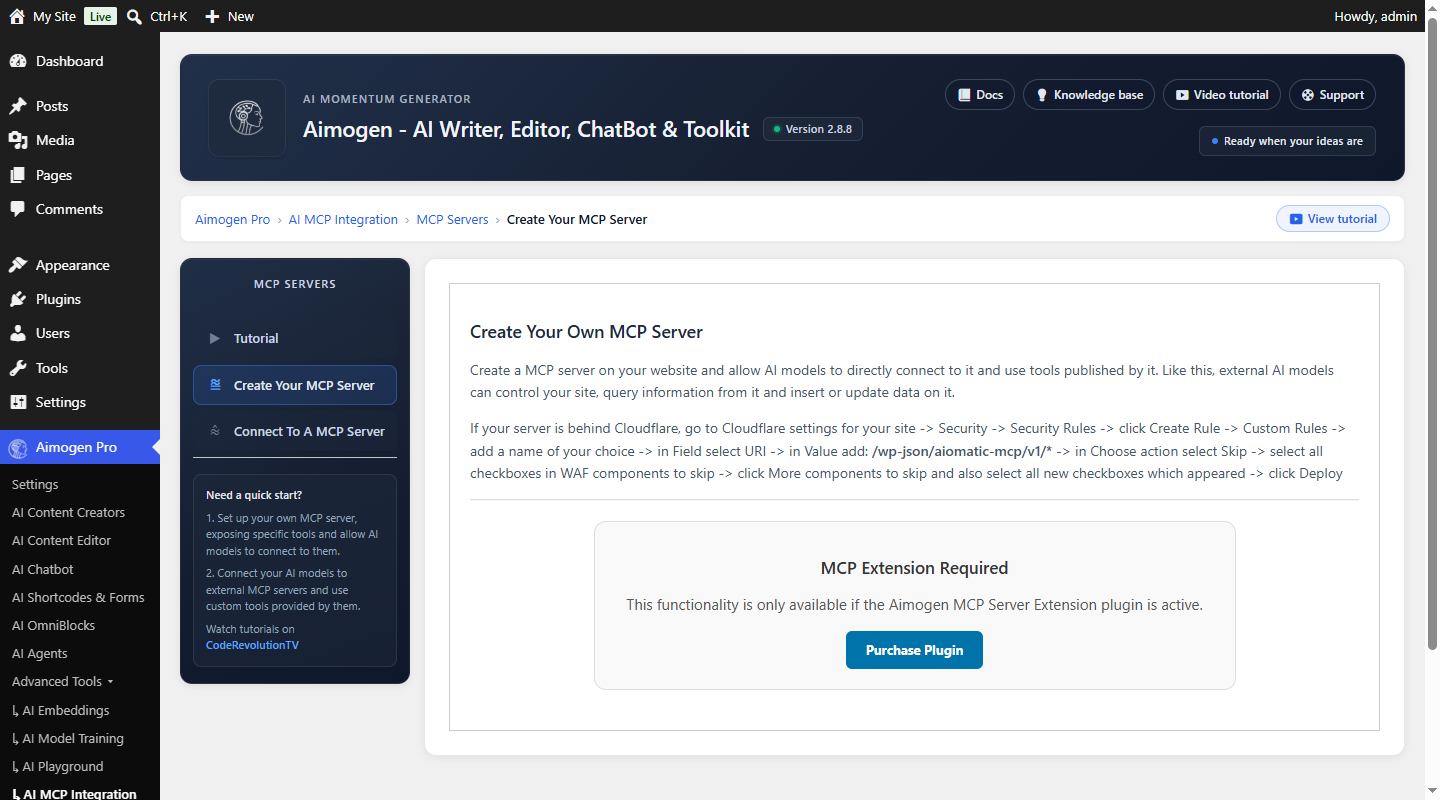
Aimogen Pro as an MCP server: external clients — Claude Desktop, ChatGPT, or any MCP-capable application — connect to your WordPress site and use it as a tool.
Create Your MCP Server
Endpoints#
/wp-json/aiomatic-mcp/v1/sse
/wp-json/aiomatic-mcp/v1/messages
/wp-json/aiomatic-mcp/v1/aiomatic-toolsSettings#
Stored in the aiomatic_mcp_settings option.
| Setting | What it does |
|---|---|
enable_sse | Master switch for the server |
bearer_token | The token clients must present. Set a long random value |
enable_debug | Verbose logging |
tuned_core | Core WordPress functionality. On by default |
tuned_plugins | Plugin-related functionality |
tuned_themes | Theme-related functionality |
dynamic_rest | Dynamic REST API access |
tuned_woocommerce | WooCommerce functionality |
session_memory | Session storage across calls |
embeddings_sse | Embeddings access |
advanced_sse | Advanced tooling |
Version 2.6.0 added MCP tools for session storage, Gutenberg block generation, embeddings, Amazon, scraping, internet search, YouTube and email.
Security#
Firewall configuration#
Web application firewalls frequently block these routes. The settings screen includes vendor-specific
instructions — for Sucuri, that means Security › Security Rules › Create Rule › Custom Rules, matching
URI /wp-json/aiomatic-mcp/v1/* with the action set to Skip, with all WAF components (including the
additional ones under "More components to skip") selected, then Deploy.
See Plugin and server conflicts.
Connecting a client#
Once the server is running, point an MCP-capable client at the SSE endpoint with the bearer token. The settings screen provides the exact URLs with a copy button.
When MCP is worth it#
Connecting to servers is worth it when a capability you need already exists as an MCP server — a database, an internal API, a SaaS tool. Building it as an MCP server once makes it available to every MCP-capable AI you use, not just this plugin.
Exposing your site is worth it when you want to work with your WordPress content from an AI client — asking Claude Desktop about your site, or having it draft content in place.
For automation that runs on your site, OmniBlocks and agents are simpler and need no external client.
Common problems#
The MCP server settings are missing. The extension plugin is not active.
A client cannot connect. A firewall is blocking /wp-json/aiomatic-mcp/v1/*, or the bearer token does
not match.
Connected tools do not appear in the chatbot. The server is not enabled for that chatbot in
Enabled MCP Server Connections.
Tools never fire. The model does not support function calling. See Selecting models.
Related#
Still stuck? Open a support ticket and include the diagnostics from Aimogen Pro › System & Logs › System Info.