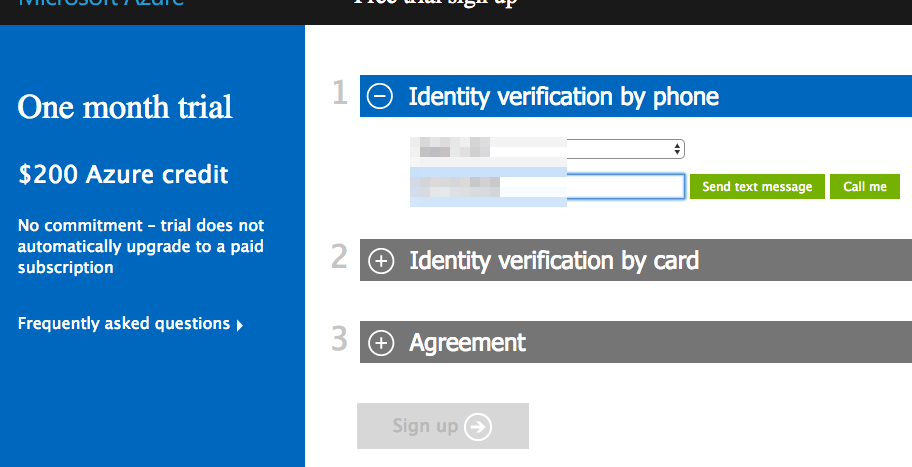
1- Sign up for an Azure account here https://azure.com/
2- After you have an account go to https://portal.azure.com
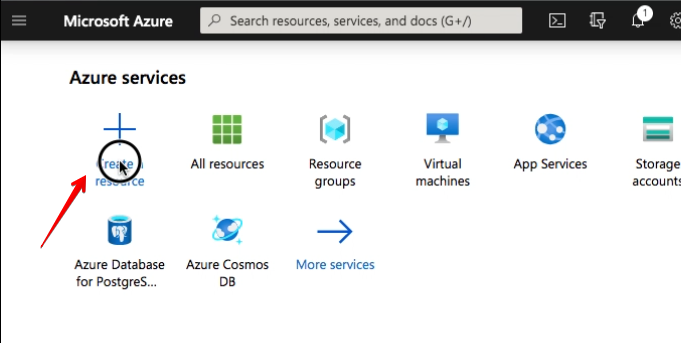
3- Click the “Create a resource” button
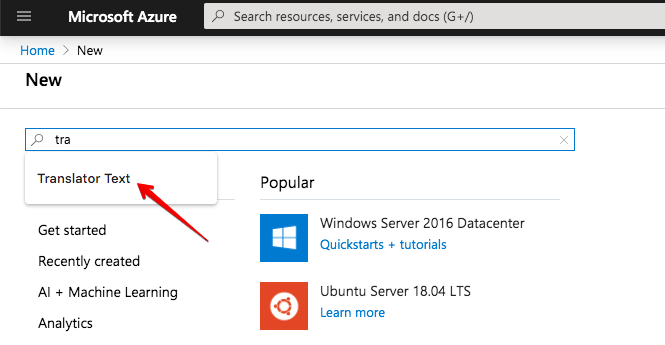
4-Search for “Translate” in the search box
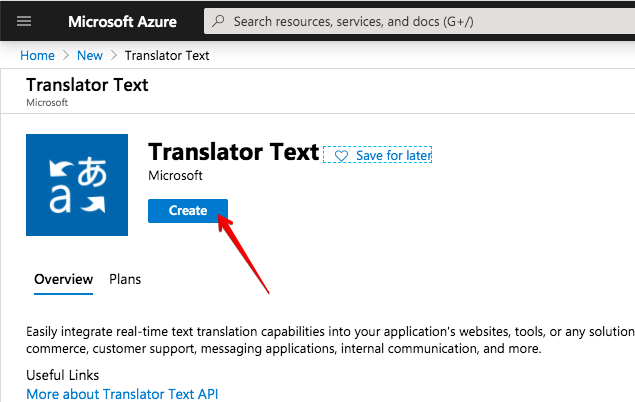
5- choose “Translator Text API”
6- Click the “Create” button
7- Fill the form and set the Region to Global then hit the create option
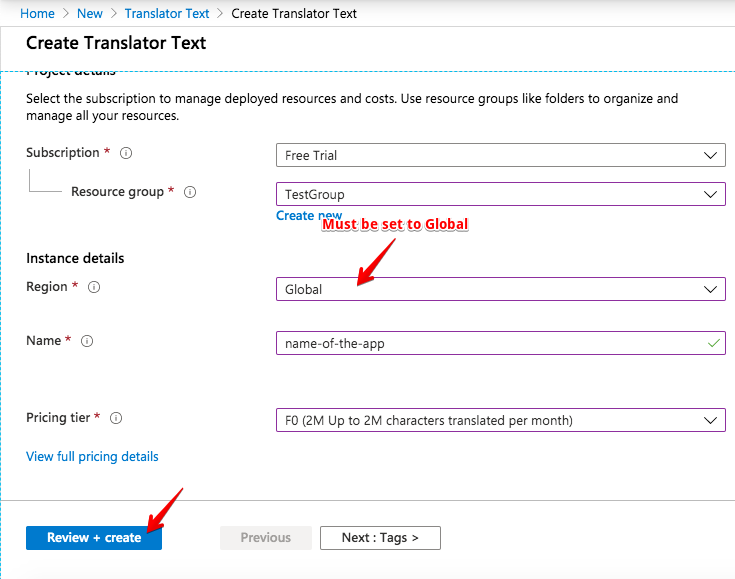
Better set the region to “Global” . If it did not create for you, chose whatever region you like but you will need to set the region field on the plugin settings page to the chosen region
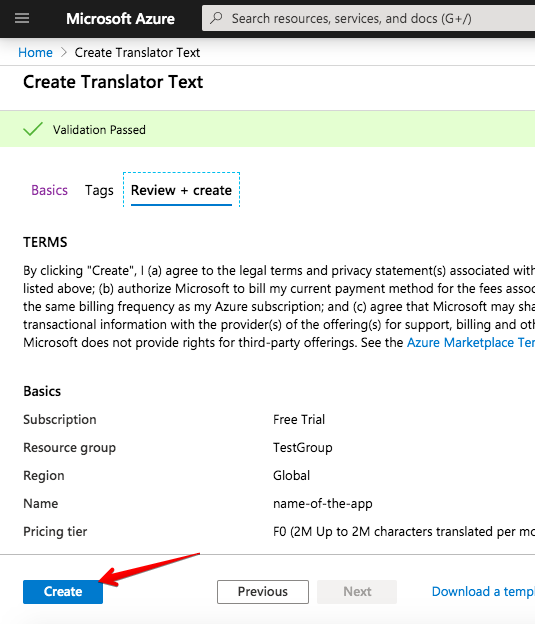
8- Let it validate, then create Create
9- once created, click on the home icon
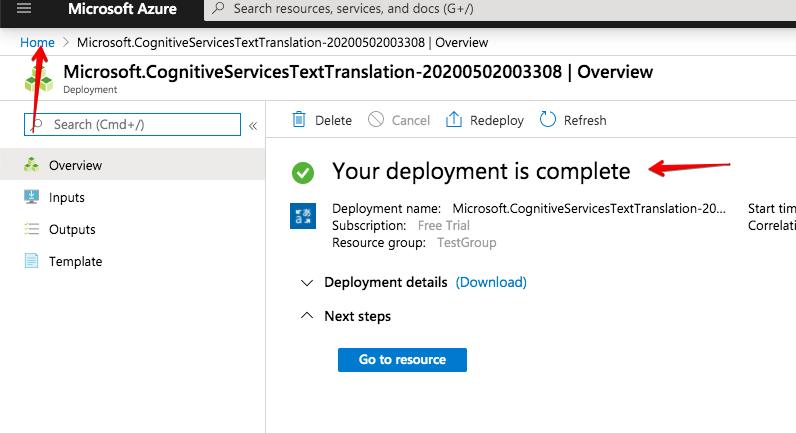
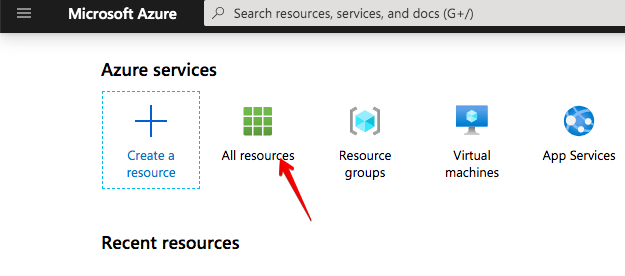
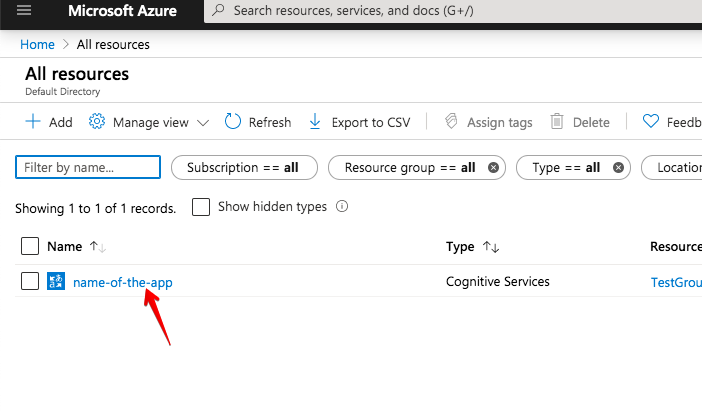
10- click on “All resources” then pick the APP we just created
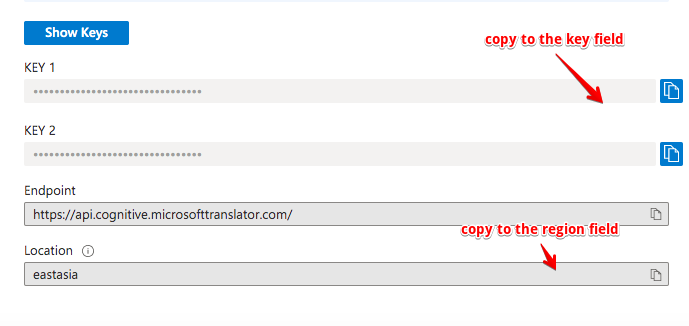
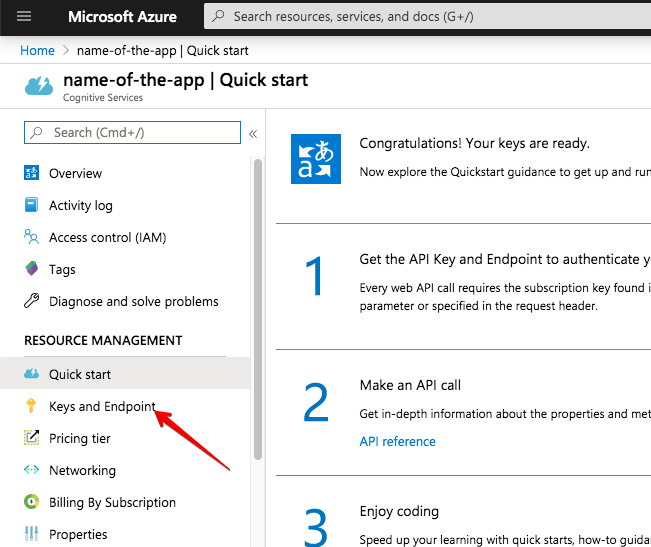
11- Click on keys button then copy the API key
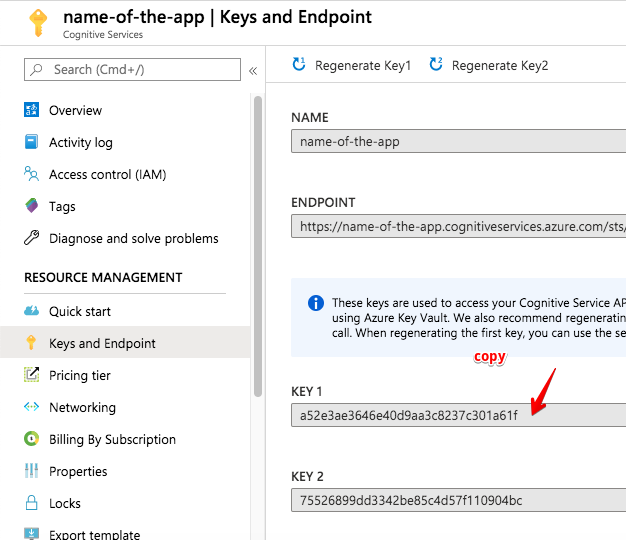
Now you can paste to the plugin settings page.
If you have chosen a region, copy the location value to the region field on the plugin settings page below the API key