Check Plugin Documentation
Get started quickly with our comprehensive guides
Take just a moment please before we begin
Before we begin, please read the Envato Affiliate Program quick introduction and the Envato Affiliate Program Terms of Service.
Other useful links:
I also added in the zip file you just downloaded a folder named “ref_banners”, which is full of referral banners to Envato Marketplaces. Use them wisely!
So… let’s begin!
This plugin will allow you to build from scratch an affiliate marketing referral website for Envato Marketplaces.
This plugin provides one solution to the ongoing search for new referral content. It not only provides a steady stream of rich, searchable content, it also helps to keep your website up to date with the latest news from the Envato Markets. You can build rules that will generate posts that are near to unique in website crawlers’s eyes. They require none to very little customization.
The goal is to achieve the following:
Hand of Midas Envato Affiliate Plugin will import items from Envato Marketplaces you define to your blog. Resulting blog posts are fully customizable and rich in content. List of customizable stuff for each post:
- post author user name
- post status (published, draft, pending, private, trash)
- automatically generate post categories or tags from marketplace items
- manually add post categories or tags to items
- generate post or page
- automatically generate a featured image for the post
- enable/disable comments for the generated post
- import existing comments from the Envato Marketplace item
- customize post title and content (with the included wide variaty of relevant post shortcodes)
Other plugin features:
- Supports all Envato Markeplaces
- Using Envato Market API
- Link hiding using Goo.gl link shortener
- Automatically update generated posts
- Keyword Replacer (replace relevant keywords with referral links)
- Random sentence generator (relevant sentences – as you define them)
- detailed plugin activity logging
- scheduled rule runs
- ‘grouped post’ creation (more items are grouped in one post -> ‘Check out these 5 interesting plugins on Envato Market’)
Plugin requirements:
PHP DOM -> how to install it (if you don’t have it, but probably you already have it): http://php.net/manual/en/dom.setup.php
WordPress installation
Youtube video tutorial:
I also provided a Quick Install Guide to feature an easy plugin installation for everyone.
To make this plugin work, first, you’ll need to install the plugin. The easiest method is to take the .zip file you’ve downloaded and upload it via Plugins > Add New > Upload Plugin in the WordPress Dashboard. Once the plugin is installed, be sure to Activate it.
Now that you’ve installed and activated the plugin, you’ll see a new menu item created inside WordPress called ‘Hand of Midas Envato Affiliate’. First thing first, let’s head over to Settings > Hand of Midas Envato Affiliate and take a look at what options are available.
Plugin Settings
Refreshingly, Hand of Midas Envato Affiliate plugin has a super-simple settings screen. Let’s look at first at the settings panel:
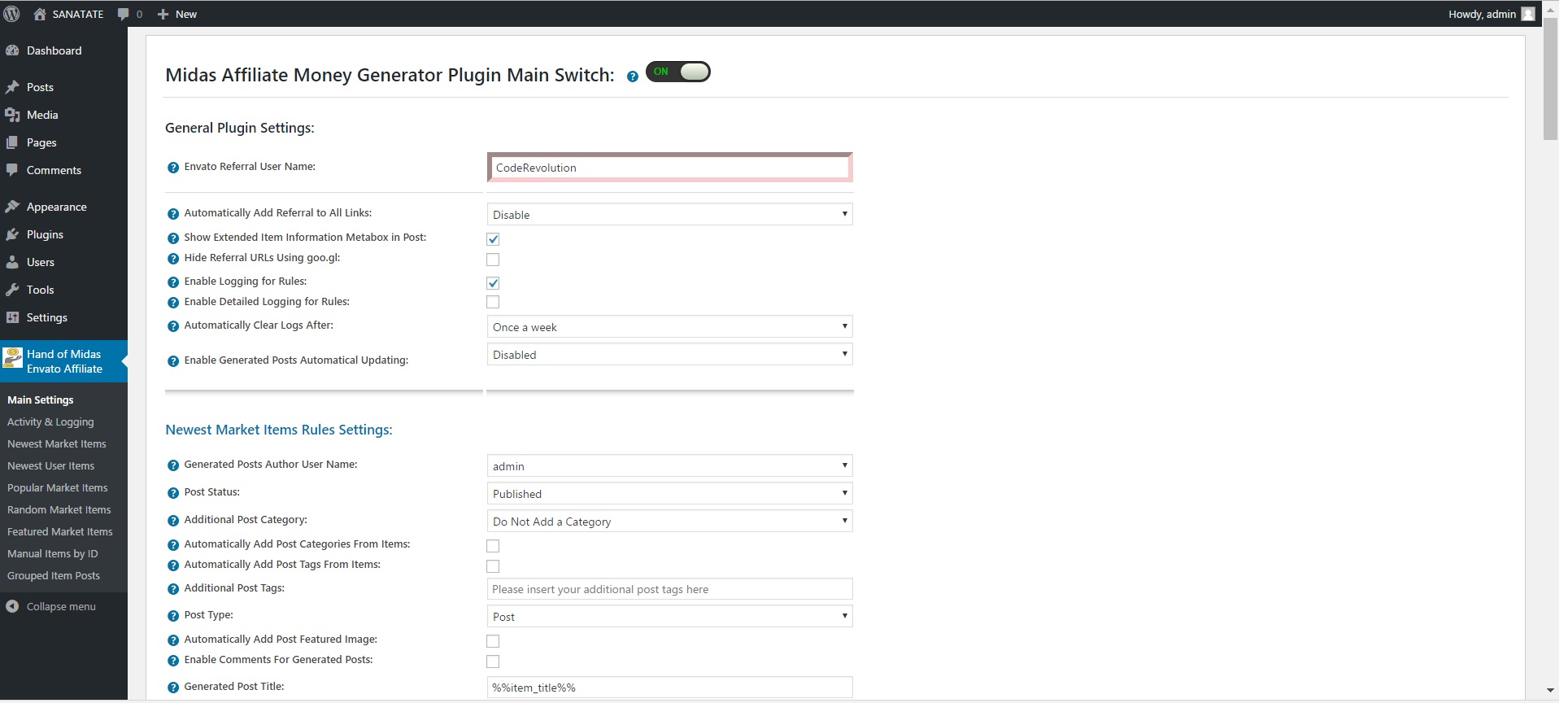
Here you can find the steps needed in configuring your plugin even if you have no HTML knowledge at all. You can find options for:
HINT! Don’t forget to click the Save button every time you modified your settings, otherwise the modifications will be lost!
Main Settings:
- Hand of Midas Envato Affiliate Plugin Main Switch: Enable or disable the Hand of Midas Envato Affiliate Plugin. This acts like a main switch.
- Envato Referral User Name: Select the Envato username which will be added to the referral links. Don’t have an account? You can sign up HERE! After you have an account, you can start earning money!
- Automatically Add Referral to All Links: Choose if you want to automatically add referral user name to all envato links in your post contents – this will also replace other referral user names with your own.
- Show Extended Item Information Metabox in Post: Choose if you want to show an extended information metabox under every plugin generated post.
- Hide Referral URLs Using goo.gl: Choose if you want to cloak URLs with goo.gl link shortener. To lean more about this, please visit this link.
- Goo.gl API key: Insert your goo.gl api key. To lean more about this, please visit this link.
- Enable Logging for Rules: Do you want to enable logging for rules?
- Enable Detailed Logging for Rules: Do you want to enable detailed logging for rules? Note that this will dramatically increase the size of the log this plugin generates.
- Automatically Clear Logs After: Choose if you want to automatically clear logs after a period of time.
- Enable Generated Posts Automatical Updating: Do you want to enable automatical updating for generated posts (in case the item developer issues an update)?
From here on, each rule type will have an advanced settings panel. Each rule type will have the following advanced settings:
- Generated Posts Author User Name: Username of the publisher of the published posts for anonymous user submissions.
- Post Status: Select the status that you want for the automatically generated posts to have.
- Additional Post Category: Select the post category that you want for the automatically generated posts to have.
- Automatically Add Post Categories From Items: Do you want to automatically add post categories from the Envato items?
- Automatically Add Post Tags From Items: Do you want to automatically add post tags from the Envato items?
- Additional Post Tags: Select the post tags that you want for the automatically generated posts to have.
- Post Type: Select the post type that you want for the automatically generated posts to have.
- Automatically Add Post Featured Image: Do you want to automatically add post featured image from the Envato item?
- Default Featured Image if No Image Available for Item: Insert a link to a valid image that will be set for the featured image for the posts that do not have a valid image attached or if you disabled automatical featured image generation. To disable this feature, leave this field blank.
- Enable Comments For Generated Posts: Do you want to enable comments for the generated posts?
- Maximum Number of Imported Comments: Do you want to automatically generate post comments from item’s comments feed?
- Generated Post Title: Set the title of the generated posts for newest market items. You can use the following shortcodes: %%random_sentence%%, %%random_sentence2%%, %%item_title%%, %%item_description%%, %%item_description_plain_text%%, %%item_id%%, %%item_user%%, %%item_cost%%, %%item_cat%%, %%item_tags%%, %%item_uploaded%%, %%item_last_update%%, %%item_sales%%, %%item_rating%%
- Generated Post Content: Set the content of the generated posts for newest market items. You can use the following shortcodes: %%random_sentence%%, %%see_more_button%%, %%buy_now_button%%, %%video_preview%%, %%video_preview_button%%, %%item_screenshots_button%%, %%live_preview_button%%, %%generate_item_intro%%, %%generate_item_thumbnail%%, %%item_preview%%, %%item_title%%, %%item_description%%, %%item_description_plain_text%%, %%item_id%%, %%item_media_url%%, %%item_img_url%%, %%item_video_url%%, %%item_thumb_url%%, %%item_url%%, %%item_user%%, %%item_cost%%, %%item_cat%%, %%item_tags%%, %%item_uploaded%%, %%item_last_update%%, %%item_sales%%, %%item_rating%%
Each Rule Type has the following settings in it’s own settings screen:
- ID: This is the ID of the rule.
- Post Source Category: Select the source from where you want to get your latest items.
- Schedule (Hours) Select the interval in hours after which you want this rule to run.
- Max Posts At A Time Select the maximum number of posts that this rule can create at once. 0-50 interval allowed..
- Del: Do you want to delete this rule?
- Active: Do you want to enable this rule? You can deactivate any rule (you don’t have to delete them to deactivate them).
- Info: The number of items (posts, pages) this rule has generated so far.
- Actions: Do you want to run this rule now? Note that only one instance of a rule is allowed at once.
How to customize resulting posts with built in shortcodes?
You can use the following shortcodes in post title and content editing:
- %%random_sentence%% – generates a random sentence (as you have defined them in plugin config.) More on how to configure the random sentence generator, check plugin documentation (down)
- %%random_sentence2%% – generates a random sentence (from the second geenrator) (as you have defined them in plugin config.) More on how to configure the random sentence generator, check plugin documentation (down)
- %%buy_now_button%% – generates a ‘Buy Now’ button that links to the Envato page where the customer can buy the item.
- %%video_preview%% – generates a video preview (if the item has a video preview)
- %%video_preview_button%% – generates a ‘Video Preview’ button that will open a lightbox with the video preview
- %%item_screenshots_button%% – generates a ‘Screenshots’ button that will open a new tab with the screenshots of the item
- %%live_preview_button%% – generates a ‘Live Preview’ button that links to the live preview of the item (if it has one)
- %%generate_item_intro%% – generates an item introduction card with all relevant information about the item
- %%generate_item_thumbnail%% – generates an item thumbnail which will have an Envato style mouse over popup with the item’s relevant information
- %%item_preview%% – generates an item preview (featured image of the item, or, in case of AudioJungle market -audio, or in case of VideoHive – video.
- %%item_title%% – generates the title of the item
- %%item_description%% – generates the description of the item (item content)
- %%item_description_plain_text%% – generates the plain text description of the item
- %%item_id%% – generates the ID of the item
- %%item_media_url%% – generates the URL of the item media (item_preview media)
- %%item_img_url%% – generates the URL of the item’s image (if it has one)
- %%item_video_url%% – generates the URL of the item’s video (if it has one)
- %%item_thumb_url%% – generates the URL of the item’s thumbnail
- %%item_url%% – generates the URL of the item (on Envato Marketplace)
- %%item_user%% – generates the username of the item author
- %%item_cost%% – generates the price of the item (without the $ character)
- %%item_cat%% – generates the category of the item
- %%item_tags%% – generates the tags of the item
- %%item_uploaded%% – generates the date when the item was uploaded to the Envato Market
- %%item_last_update%% – generates the date when the item was last updated
- %%item_sales%% – generates number of sales of the item
- %%item_rating%% – generates the rating of the item
How to add ‘Grouped Item Posts’?
You can add grouped item post by navigating to the ‘Grouped Item Posts’ admin menu page and: – inserting the item IDs, separated by commas in the ‘Post IDs to Add’ field. Inserting the desired post title in the ‘Post Title’ field (you can use %%random_sentence%%, %%random_sentence2%%, %%total_item_count%% shortcodes). Insert the post content in the ‘Post Content’ text field (you can use the following shortcodes: %%random_sentence%%, %%random_sentence2%%, %%list_items) The %%list_items%% shortcode will add the content of all the items (as you define in the next text field). In the ‘Each Item Entry Content’ text field you can define the content of each item that you have inserted. Here, you can use the full list of shortcodes available in this plugin (%%random_sentence%%, %%random_sentence2%%, %%total_item_count%%, %%current_counter%%, %%see_more_button%%, %%buy_now_button%%, %%video_preview%%, %%video_preview_button%%, %%item_screenshots_button%%, %%live_preview_button%%, %%generate_item_intro%%, %%generate_item_thumbnail%%, %%item_preview%%, %%item_title%%, %%item_description%%, %%item_description_plain_text%%, %%item_id%%, %%item_media_url%%, %%item_img_url%%, %%item_video_url%%, %%item_thumb_url%%, %%item_url%%, %%item_user%%, %%item_cost%%, %%item_cat%%, %%item_tags%%, %%item_uploaded%%, %%item_last_update%%, %%item_sales%%, %%item_rating%%)
How to work with ‘Random Sentence Generator’?
You can use the Random Sentence Generator by inserting list of sentences to the ‘First List of Possible Sentences (%%random_sentence%%)’ text field. Here, you can add full sentences, or sentences with variables. Variables are structured as: %something. A possible list of sentences can be:
- Meet this %adjective %noun %sentence_ending
- This is the %adjective %noun ever%sentence_ending
- I %love_it %nouns , because they are the %adjective %sentence_ending
- My %family says this plugin is very %adjective %sentence_ending
- These %nouns are quite %adjective %sentence_ending
You can define variables in the ‘List of Possible Variables:’ textfield. Here you can define values to variables, values which will be used in the random sentence forming. Variables can be defined as follows:
variable_name1 => variable_value1;variable_value2;variable_value3

variable_name2 => variable2_value1;variable2_value2;variable2_value3
You can also use variables in variable definition. Example:
noun_with_adjective => %noun;%adjective %noun
An example of variable definition:
adjective_very => %adjective;very %adjective;

adjective => clever;interesting;smart;huge;astonishing;unbelievable;nice;adorable;beautiful;elegant;fancy;glamorous;magnificent;helpful;awesome

noun_with_adjective => %noun;%adjective %noun

noun => plugin;WordPress plugin;item;ingredient;component;constituent;module;add-on;plug-in;addon;extension

nouns => plugins;WordPress plugins;items;ingredients;components;constituents;modules;add-ons;plug-ins;addons;extensions

love_it => love;adore;like;be mad for;be wild about;be nuts about;be crazy about

family => %adjective %family_members;%family_members

family_members => grandpa;brother;sister;mom;dad;grandma

sentence_ending => .;!;!!
These random sentences can be used in post titles or post content, by adding the %%random_sentence%% or %%random_sentence2%% shortcode.
What are WordPress shortcodes?
Shortcodes in WordPress are little bits of code that allow you to do various things with little effort. They were introduced in WordPress 2.5, and the reason to introduce them was to allow people to execute code inside WordPress posts, pages, and widgets without writing any code directly. This allows you to embed files or create objects that would normally require a lot of code in just one single line. For example, a shortcode for embedding information about the user’s browser looks like this:
[midas_author]
Sometimes you may want to use the text of a shortcode in a post. To do this you have to escape it using double brackets. For example, if you want to add the user submission form to a page, you can use midas_author shortcode to add the form, by using the following shortcode:
[[midas_author]]
Shortcodes simplify the addition of features to a WordPress site. By using shortcodes the HTML and other markup is added dynamically directly into the post or page where the user wants them to appear.
Results: If everything is configured well, you can go to plugin administration page, and you can wait to see it’s results in your posts admin page (and in plugin control panel where you can see logs of your user submitted posts)! You can also include the following shortcode to your website:
[midas_author] – this shortcode will display relevant information about an author you enter. Example: [midas_author user=coderevolution followers=on image=on thumbnail=on country=on location=on sales=on]. Followers=on will show information about the number of followers of the selected user. image=on will display the user’s profile image. Thumbnail=on will display the user’s thumbnail. Country=on will display the user’s country, Location=on will display the user’s location and Sales=on will display the users sales number.
[midas_item] – this shortcode will display relevant information about an item you enter. Example [midas_item item=”19200046″ image=on thumbnail=on sales=on author=on rating=on cost=on tags=on category=on uploaded_on=on last_update=on]. Each flag=on will display relevant information about the selected item.
[midas_item_card] – this shortcode will display a card with information about the item which ID you entered. Example: [midas_item_card item=”19200046″]
[midas_item_thumbnail] – this shortcode will display the entered item’s thumbnail with an Envato style popup on mouse over with the item’s relevant information. Example: [midas_item_thumbnail item=”19200046″].
Where to get the item’s ID? To get one Envato Marketplace item’s ID, simply go to the item’s URL and copy the number from the end of the item’s URL. Exemple: https://codecanyon.net/item/silencer-comment-management-plugin-for-wordpress/19274824 -> this item’s ID is 19274824.
Here are some examples of Hand of Midas Envato Affiliate plugin features:
A generated item post with the featured image card:

Grouped post example 1:

Grouped post example 2:

Featured author shortcode example [midas_author]:

Item thumbnail popup example [midas_item_thumbnail]:

Another basic example:

Featured item shortcode example [midas_item]:

Example list of plugin generated posts:

Summary
Hand of Midas Envato Affiliate plugin is a simple, yet powerful tool you can use to create a profitable affiliate marketing webpage. The setup and settings of the plugin couldn’t have been easier. Now, let’s go and enjoy the results of this great plugin! Have fun using it!
Sources and Credits
This component was made by Szabi CodeRevolution, for more information and support contact us at support@coderevolution.ro
Once again, thank you so much for purchasing this item. As I said at the beginning, I’d be glad to help you if you have any questions regarding this plugin and I’ll do my best to assist.
CodeRevolution