Check Plugin Documentation
Get started quickly with our comprehensive guides
About this plugin
This plugin will allow you to build from scratch an autoblogging system, based on EzineArticles feeds you define (pages or public groups).
This plugin provides one solution to the ongoing search for new blog content. It not only provides a steady stream of rich, searchable content, it also helps to keep your website up to date with the latest news. You can build rules that will generate posts that are near to unique in website crawlers’s eyes. They require none to very little customization.
The goal is to achieve the following:
Ezinomatic Automatic Post Generator will import items from any content from public EzineArticles groups or EzineArticles pages, you define to your blog. Resulting blog posts are fully customizable and rich in content. List of customizable stuff for each post:
- post author user name
- post status (published, draft, pending, private, trash)
- automatically generate post categories or tags from EzineArticles posts
- manually add post categories or tags to items
- generate post or page
- automatically generate a featured image for the post
- enable/disable comments for the generated post
- import comments from the EzineArticles post as blog comments
- enable/disable pingbacks/trackbacks for the generated post
- customize post title and content (with the included wide variaty of relevant post shortcodes)
Other plugin features:
- Google Translate support ‘ select the language in which you want to post your articles
- Text Spinner support ‘ automatically modify generated text, changing words with their synonyms ‘ great SEO value!
- Supports EzineArticles public groups and pages (Note that if you want to post from a private user’s profile, your App needs user_posts permission. Details here)
- Using Faceook Graph API
- Keyword Replacer (replace relevant keywords with your links)
- Random sentence generator (relevant sentences – as you define them)
- detailed plugin activity logging
- scheduled rule runs
This plugin requires a EzineArticles API Aceess Token. How do I get one?
Please go to this link. Enroll in the API and get the necessary API Key.
To get the optional Pixabay article feature on track, you need to also enroll in the Pixabay API here.
Plugin requirements:
PHP curl
WordPress installation
Youtube video tutorial:
I also provided a Quick Install Guide to feature an easy plugin installation for everyone.
To make this plugin work, first, you’ll need to install the plugin. The easiest method is to take the .zip file you’ve downloaded and upload it via Plugins > Add New > Upload Plugin in the WordPress Dashboard. Once the plugin is installed, be sure to Activate it.
Now that you’ve installed and activated the plugin, you’ll see a new menu item created inside WordPress called ‘Ezinomatic Automatic Post Generator’. First thing first, let’s head over to Settings > Ezinomatic Automatic Post Generator and take a look at what options are available.
Plugin Settings
Refreshingly, Ezinomatic Automatic Post Generator has a super-simple settings screen. Let’s look at first at the settings panel:
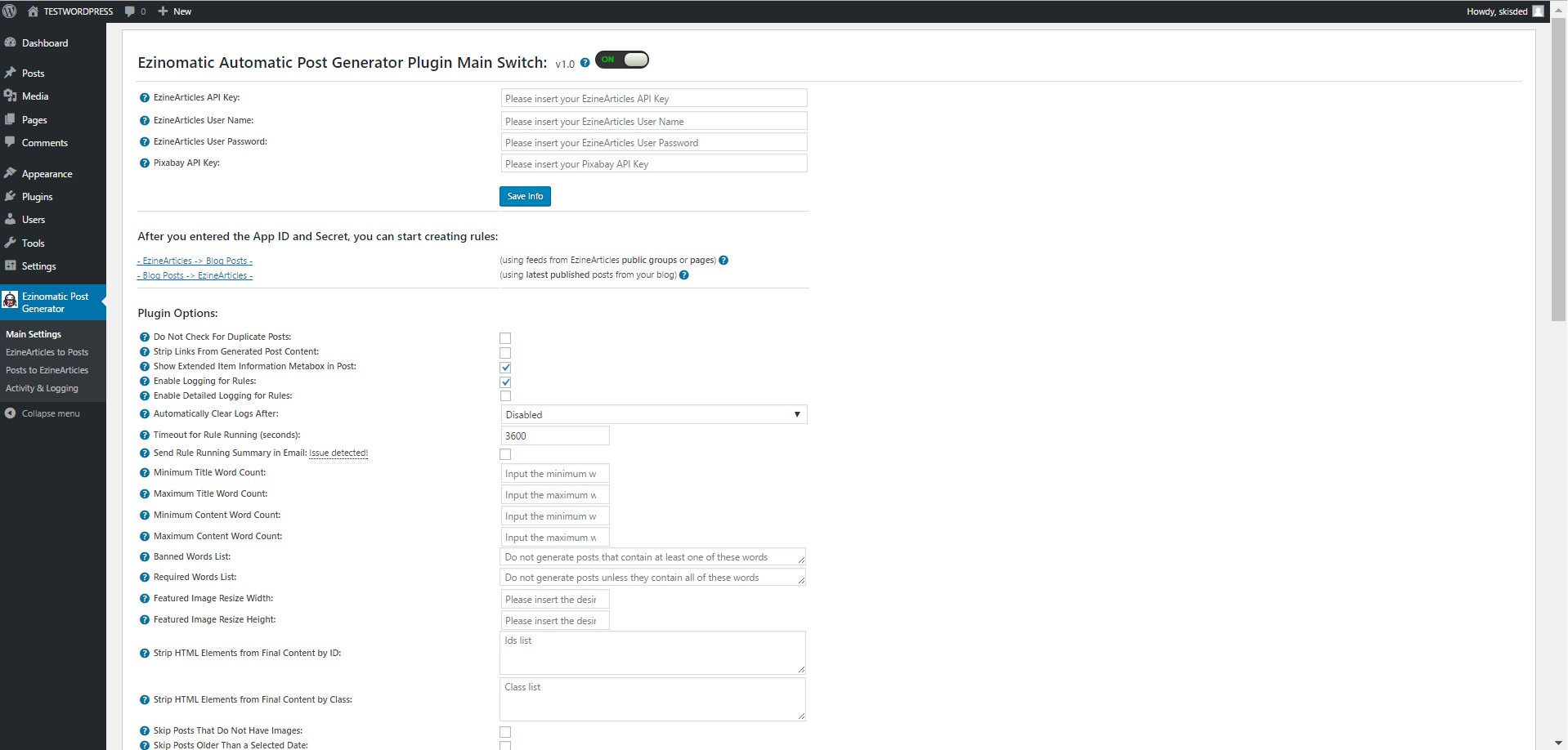
Here you can find the steps needed in configuring your plugin even if you have no HTML knowledge at all. You can find options for:
HINT! Don’t forget to click the Save button every time you modified your settings, otherwise the modifications will be lost!
Main Settings:
- Ezinomatic Automatic Post Generator Main Switch: Enable or disable the Ezinomatic Automatic Post Generator. This acts like a main switch.
- EzineArticles API Key: Insert your EzineArticles API Key. Get one here. This is needed only if you want to grab articles from EzineArticles.
- EzineArticles User Name: Insert your EzineArticles user name. This is optional. Insert your user name and password only if you want to automatically post articles to EzineArticles.
- EzineArticles User Password: Insert your EzineArticles User Password. This is optional. Insert your user name and password only if you want to automatically post articles to EzineArticles.
- Pixabay API Key: Insert your Pixabay api key. This is optional. If you insert one, the plugin can get related images to each article and set them as featured image for generated posts. You must create an account an log in. Afterwards you can get the API Key from here
- Strip Links From Generated Post Content: Choose if you want to strip links from the generated post content.
- Do Not Check For Duplicate Posts: Choose if you want to skip checking for duplicate posts when publishing new posts (check this if you have 10000+ posts on your blog and you are experiencing slowdows when the plugin is running. If you check this, duplicate posts will be posted! So use it only when it is necesarry.
- Show Extended Item Information Metabox in Post: Choose if you want to show an extended information metabox under every plugin generated post.
- Enable Logging for Rules: Do you want to enable logging for rules?
- Enable Detailed Logging for Rules: Do you want to enable detailed logging for rules? Note that this will dramatically increase the size of the log this plugin generates.
- Automatically Clear Logs After: Choose if you want to automatically clear logs after a period of time.
- Timeout for Rule Running (seconds): Set the timeout (in seconds) for every rule running. I recommend that you leave this field at it’s default value (3600).
- Send Rule Running Summary in Email: Choose if you want to receive a summary of the rule running in an email.
- Email Address: Input the email adress where you want to send the report. You can input more email addresses, separated by commas.
- Minimum Title Word Count: Set the minimum word count for post titles. Items that have less than this count will not be published. To disable this feature, leave this field blank.
- Maximum Title Word Count: Set the maximum word count for post titles. Items that have more than this count will not be published. To disable this feature, leave this field blank.
- Minimum Content Word Count: Set the minimum word count for post content. Items that have less than this count will not be published. To disable this feature, leave this field blank.
- Maximum Content Word Count: Set the maximum word count for post content. Items that have more than this count will not be published. To disable this feature, leave this field blank.
- Banned Words List: Do not include posts that’s title or content contains at least one of these words. Separate words by comma. To disable this feature, leave this field blank.
- Required Words List: Do not include posts that’s title or content does not contain at least one of these words. Separate words by comma. To disable this feature, leave this field blank.
- Strip HTML Elements from Final Content by ID: Strip HTML elements from final content that have this IDs. You can insert more IDs, separeted by comma. To disable this feature, leave this field blank.
- Strip HTML Elements from Final Content by Class: Strip HTML elements from final content that have this class. You can insert more classes, separeted by comma. To disable this feature, leave this field blank.
- EzineArticles Post Types to Skip: Skip these EzineArticles post types when inserting blog posts. Valid values are: link, status, photo, video, event, offer. Separate multiple entries by comma. Ex: ‘status, offer, link’. To disable this feature, leave this textfield blank. For more info about EzineArticles post types, check plugin documentation.
- Automatically Translate Content To: Do you want to automatically translate generated content using Google Translate?
- Skip Posts That Do Not Have Images: Choose if you want to skip posts that do not have images.
- Skip Posts Older Than a Selected Date: Choose if you want to skip posts that are older than a selected date.
- Choose if you want to skip posts that are older than a selected date. Select the date prior which you want to skip posts.
- Spin Text Using Word Synonyms: Do you want to randomize text by changing words of a text with synonyms using one of the listed methods? Note that this is an experimental feature and can in some instances drastically increase the rule running time!
- First List of Possible Sentences (%%random_sentence%%): Insert some sentences from which you want to get one at random. You can also use variables defined below. %something ==> is a variable. Each sentence must be sepparated by a new line.
- Second List of Possible Sentences (%%random_sentence2%%): Insert some sentences from which you want to get one at random. You can also use variables defined below. %something ==> is a variable. Each sentence must be sepparated by a new line.
- List of Possible Variables: Insert some variables you wish to be exchanged for different instances of one sentence. Please format this list as follows:Variablename => Variables (seperated by semicolon)Example:adjective => clever;interesting;smart;huge;astonishing;unbelievable;nice;adorable;beautiful;elegant;fancy;glamorous;magnificent;helpful;awesome
- Custom HTML Code #1: Insert a custom HTML code that will replace the %%custom_html%% variable. This can be anything, even an Ad code.
- Custom HTML Code #2: Insert a custom HTML code that will replace the %%custom_html2%% variable. This can be anything, even an Ad code.
- ID (Affiliate Keyword Replacer Tool Settings:) This is the ID of the rule.
- DEL (Affiliate Keyword Replacer Tool Settings:) Do you want to delete this rule?
- Search Keyword (Affiliate Keyword Replacer Tool Settings:) This keyword will be replaced with a link you define.
- Replacement Keyword (Affiliate Keyword Replacer Tool Settings:) This keyword will replace the search keyword you define. Leave this field blank if you only want to add an URL to the specified keyword.
- Link To Add (Affiliate Keyword Replacer Tool Settings:) Define the link you want to appear the defined keyword. Leave this field blank if you only want to replace the specified keyword without linking from it.
EzineArticles to Posts:
- ID This is the ID of the rule.
- Search Type Select if you want to get articles from all EzineArticles database or only from latest submitted content
- Category Search Search articles only from this specific category? This field is optional.
- Schedule (Hours) Select the interval in hours after which you want this rule to run.
- Max Posts At A Time Select the maximum number of posts that this rule can create at once. 0-50 interval allowed..
- Del: Do you want to delete this rule?
- Post Status: Select the status that you want for the automatically generated posts to have.
- Item Type : Select the type (post/page) for your automatically generated item.
- Post Author : Select the author that you want to assign for the automatically generated posts.
- Active: Do you want to enable this rule? You can deactivate any rule (you don’t have to delete them to deactivate them).
- Info: The number of items (posts, pages) this rule has generated so far.
- Actions: Do you want to run this rule now? Note that only one instance of a rule is allowed at once.
Advanced Plugin Settings Dropdown Screen:
- Generated Post Title: Set the title of the generated posts for user rules. You can use the following shortcodes: %%random_sentence%%, %%random_sentence2%%, %%item_title%%, %%item_description%%, %%item_content%%, %%item_cat%%, %%item_tags%%
- Generated Post Content: Set the content of the generated posts for user rules. You can use the following shortcodes: %%custom_html%%, %%custom_html2%%, %%random_sentence%%, %%random_sentence2%%, %%item_title%%, %%item_description%%, %%item_content%%, %%item_content_plain_text%%, %%item_read_more_button%%, %%item_show_image%%, %%item_image_URL%%, %%author%%, %%author_link%%, %%ezinearticles_like_button%%, %%item_url%%, %%item_cat%%, %%item_tags%%. More details about these see below.
- Article ID To Get: Input an article ID you want to get? Is field is optional. Get the ID from the article URL.
- Search Author: Search articles only from a specified author? This field is optional.
- Search Subcategory: Search articles only from this specific subcategory? This field is optional.
- Hide Adult Content: Do you want to hide adult content?
- Get Full Content: Do you want to get full article content?
- Strip Images From Content: Do you want to strip images from generated content?
- Limit Title Word Count: Do you want to limit the title’s lenght to a specific word count? To disable this feature, leave this field blank.
- Generated Post Format: If your template supports “Post Formats”, than you can select one here. If not, leave this at it’s default value.
- Additional Post Category: Select the post category that you want for the automatically generated posts to have.
- Automatically Add Post Categories From Items: Do you want to automatically add post categories from the feed items?
- Automatically Add Post Tags From Items: Do you want to automatically add post tags from the feed items?
- Additional Post Tags: Select the post tags that you want for the automatically generated posts to have.
- Enable Comments For Generated Posts: Do you want to enable comments for the generated posts?
- Enable Pingbacks/Trackbacks For Generated Posts: Do you want to enable pingbacks and trackbacks for the generated posts?
- Automatically Get Featured Image for Generated Post: Do you want to set featured image for generated post (to the first image that was found in the post)?
- Get Image From Pixabay: Do you want to set featured image for generated post to a related image from Pixabay? If you uncheck this option and enable featured image generation, the articles’s author image from EzineArticles, will be set as featured image.
- Default Featured Image if No Image Available for Item: Insert a link to a valid image that will be set for the featured image for the posts that do not have a valid image attached or if you disabled automatical featured image generation. To disable this feature, leave this field blank.
Posts To EzineArticles:
- EzineArticles Post Title Template: Choose the template of your EzineArticles post titles. You can use the following shortcodes: %%featured_image%%, %%post_cats%%, %%post_tags%%, %%blog_title%%, %%author_name%%, %%post_link%%, %%post_title%%, %%post_content%%, %post_excerpt%%. 10-100 characters limit.
- EzineArticles Post Content Template: Choose the template of your EzineArticles posts content. You can use the following shortcodes: %%featured_image%%, %%post_cats%%, %%post_tags%%, %%blog_title%%, %%author_name%%, %%post_link%%, %%post_title%%, %%post_content%%, %post_excerpt%%. 400-5000 words limit.
- Custom Article Author: Do you want to specify a custom author for submitted posts? Must be a valid author name listed on the account. If an author name is not provided, the account’s primary author name will be used.
- Custom Article Coauthor: Do you want to specify a custom coauthor for submitted posts? Must be a valid author name listed on the account.
- Article Category: Specify an article category. To indicate which category the article should be listed under. This field is required.
- Article Subcategory: Specify an article subcategory. To indicate which subcategory the article should be listed under. This field is optional.
- Article Signature: Specify an article signature. If none provided, account’s default signature will be used. If no default signature found on your account, an error will be returned. 10-300 words limit.
- Article Keywords: Keywords describing the article.
- Article Publish Date: This feature is for Premium Membership level authors. It allows your article, once approved, to be scheduled to appear on EzineArticles.com on the specified date. Find out how to become a Premium Membership Level Author. Note: Publishing time is Central Standard Time (America/Chicago -6 GMT). M – Represents Month on which your article should be released. D – Represents Day on which your article should be released. YYYY – Represents Year on which your article should be released. H – Represents Hour on which your article should be released.
- Disable Autoposting of ‘Posts’: Do you want to disable automatically posting of WordPress ‘posts’ to EzineArticles?
- Disable Autoposting of ‘Pages’: Do you want to disable automatically posting of WordPress ‘pages’ to EzineArticles?
- Disable Autoposting of Selected Categories: Do you want to disable automatically posting of WordPress ‘posts’ to EzineArticles?
- Disable Autoposting of Selected Tags: Input the tags for which you want to disable posting. You can enter more tags, separated by comma. Ex: cars, vehicles, red, luxury. To disable this feature, leave this field blank.
Activity and Loggind Screen:
- Rules Currently Running: These rules are currently running on your server.
- Restore Plugin Default Settings: Hit this button and the plugin settings will be restored to their default values. Warning! All settings will be lost!
- Delete All Posts Generated by this Plugin: Hit this button and all posts generated by this plugin will be deleted!
- Activity Log: This is the main log of your plugin. Here will be listed every single instance of the rules you run or are automatically run by schedule jobs (if you enable logging, in the plugin configuration).
How to customize resulting posts with built in shortcodes?
You can use the following shortcodes in post title and content editing:
- %%random_sentence%% – generates a random sentence (as you have defined them in plugin config.) More on how to configure the random sentence generator, check plugin documentation (down)
- %%random_sentence2%% – generates a random sentence (from the second geenrator) (as you have defined them in plugin config.) More on how to configure the random sentence generator, check plugin documentation (down)
- %%custom_html%% – includes the custom HTML you defined in the Main Settings interface (Custom HTML Code #1:)
- %%custom_html2%% – includes the custom HTML you defined in the Main Settings interface (Custom HTML Code #2:)
- %%item_title%% – includes the item title
- %%item_description%% – includes a short description of the article
- %%item_content%% – includes the item full HTML content
- %%item_content_plain_text%% – includes the items plain text content
- %%item_image_URL%% – includes the article’s image URL (if it exists)
- %%item_url%% – includes the article’s URL
- %%item_cat%% – includes the article’s category (if it exists)
- %%item_read_more_button%% – includes a ‘Read More’ button, pointing to the ezinearticles post from which the article was generated
- %%item_show_image%% – includes the item image in the HTML page (the full image, not only it’s URL)
- %%author%% – includes the EzineArticles post’s author’s name
- %%author_link%% – includes the EzineArticles post’s author’s URL (on EzineArticles)
- %%item_tags%% – includes the article’s tag (if it exists)
How to work with ‘Random Sentence Generator’?
You can use the Random Sentence Generator by inserting list of sentences to the ‘First List of Possible Sentences (%%random_sentence%%)’ text field. Here, you can add full sentences, or sentences with variables. Variables are structured as: %something. A possible list of sentences can be:
- Meet this %adjective %noun %sentence_ending
- This is the %adjective %noun ever%sentence_ending
- I %love_it %nouns , because they are the %adjective %sentence_ending
- My %family says this plugin is very %adjective %sentence_ending
- These %nouns are quite %adjective %sentence_ending
You can define variables in the ‘List of Possible Variables:’ textfield. Here you can define values to variables, values which will be used in the random sentence forming. Variables can be defined as follows:
variable_name1 => variable_value1;variable_value2;variable_value3

variable_name2 => variable2_value1;variable2_value2;variable2_value3
You can also use variables in variable definition. Example:
noun_with_adjective => %noun;%adjective %noun
An example of variable definition:
adjective_very => %adjective;very %adjective;

adjective => clever;interesting;smart;huge;astonishing;unbelievable;nice;adorable;beautiful;elegant;fancy;glamorous;magnificent;helpful;awesome

noun_with_adjective => %noun;%adjective %noun

noun => plugin;WordPress plugin;item;ingredient;component;constituent;module;add-on;plug-in;addon;extension

nouns => plugins;WordPress plugins;items;ingredients;components;constituents;modules;add-ons;plug-ins;addons;extensions

love_it => love;adore;like;be mad for;be wild about;be nuts about;be crazy about

family => %adjective %family_members;%family_members

family_members => grandpa;brother;sister;mom;dad;grandma

sentence_ending => .;!;!!
These random sentences can be used in post titles or post content, by adding the %%random_sentence%% or %%random_sentence2%% shortcode.
Summary
Ezinomatic Automatic Post Generator is a simple, yet powerful tool you can use to create an autoblog with ease. The setup and settings of the plugin couldn’t have been easier. Now, let’s go and enjoy the results of this great plugin! Have fun using it!
Sources and Credits
This component was made by Szabi CodeRevolution, for more information and support contact us at support@coderevolution.ro
Once again, thank you so much for purchasing this item. As I said at the beginning, I’d be glad to help you if you have any questions regarding this plugin and I’ll do my best to assist.
CodeRevolution